
Classic/New Desktop Feature Comparison Details
This page contains details of the availability of the features comparison page.
Accessing Content
Shortcut objects
Shortcut objects refer to the links (relationships) between objects in separate vaults.
Add objects to favorites
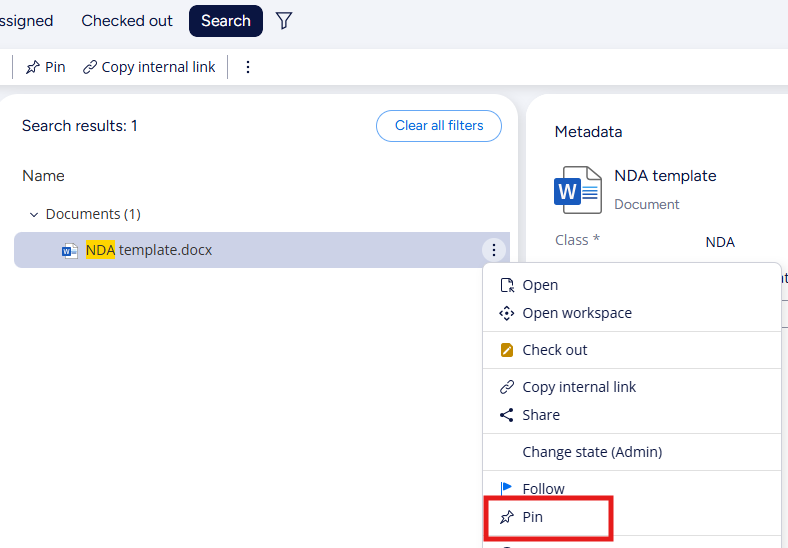
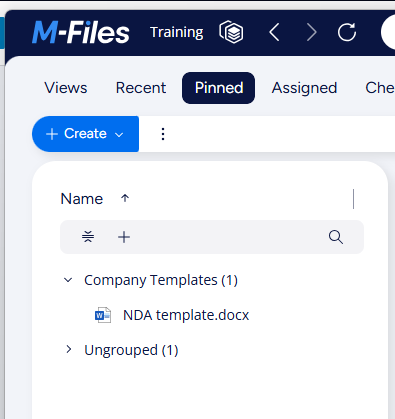
Favorites are not supported in the newest M-Files versions. Favorites feature has been replaced by Pinned Objects. Objects can be pinned from the context menu of an object, or in the new Task bar. Pinned view can be found in the top bar.
Open M-Files URLs
Will be replaced by HTTPS links in the new clients, with backwards compatible support for M-Files URLs. More URL
actions, such as creating new objects, opening metadata, and showing search filters will be added in upcoming releases.
Create views
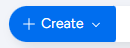
Creating views has changed from the classic Desktop significantly. Creation of views can still be initiated through the Create (old “+”) menu currently located in the Task bar. In the new Desktop, naming, adjusting view filters and grouping levels happens directly in the listing pane. This makes it easier to see the results of views immediately.
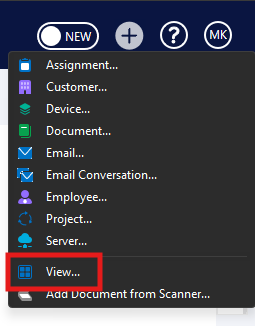
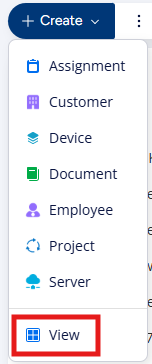
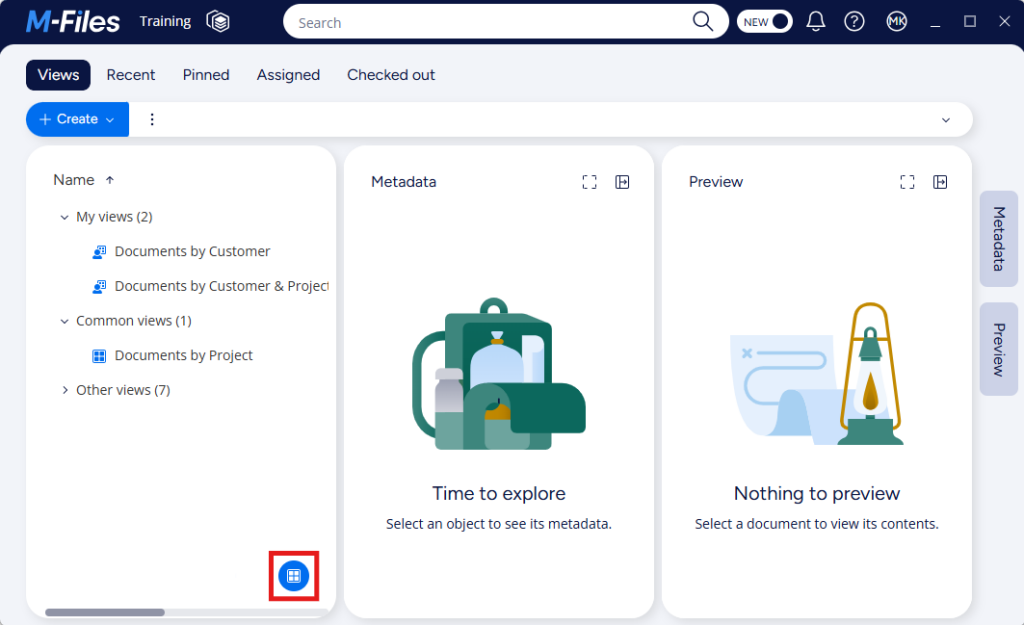
On top of the Create menu, when viewing all views in the new Desktop, view creation can also be initiated at the bottom right of the listing pane.
Task area
The classic Desktop had an expandable Task area on the left side of the screen for creation, object actions and a Go To” menu for quick links to views like “Recently Accessed by Me”, “Assigned to Me” etc.
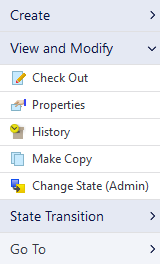
This feature is replaced in the new Desktop by the horizontal Task bar. The Task bar is located at the top of the screen, and contains the Create (the old “+”) menu, actions for chosen objects, as well as specific actions for vault applications. The old “Go To” menu has been replaced with quick links at the top of the screen. The quick links can be amended with links to specific listings and Workspaces.

For more information, please see introduction to Task bar below.
Creating Content
Creating new objects
Classic Desktop had a “plus” menu for creating objects.
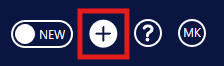
New Desktop has placed object creation to the left end of the Task bar for logical placement and a smaller footprint.
Create document collection
Document collections are only shown in the create menu if “Show the creation command in the task area” setting is
enabled for document collections in M-Files Admin.
Searching
Advanced search
In the classic Desktop, Advanced search was accessed by clicking the search bar for the first two properties, but additional properties were under “Additional Conditions” making the user experience somewhat illogical and disjointed.
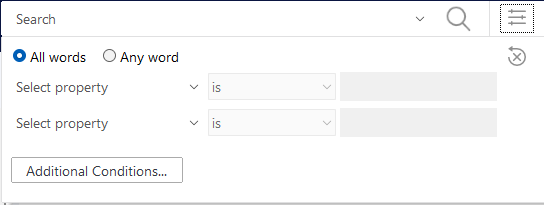
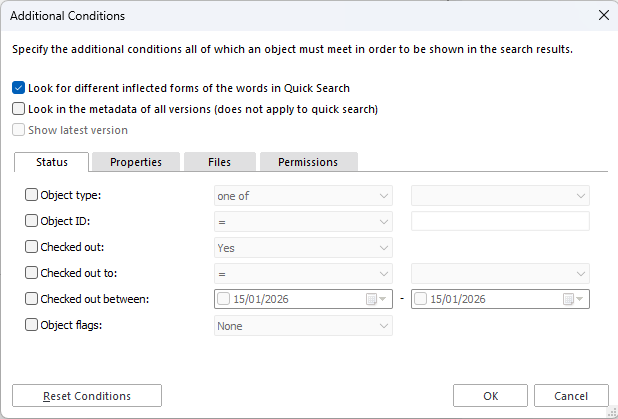
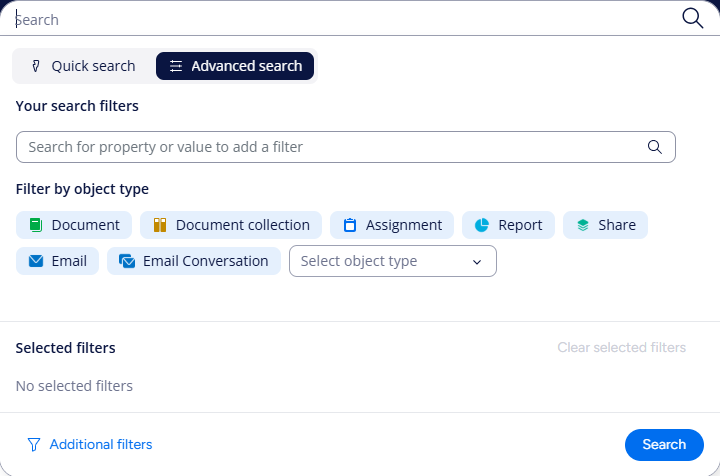
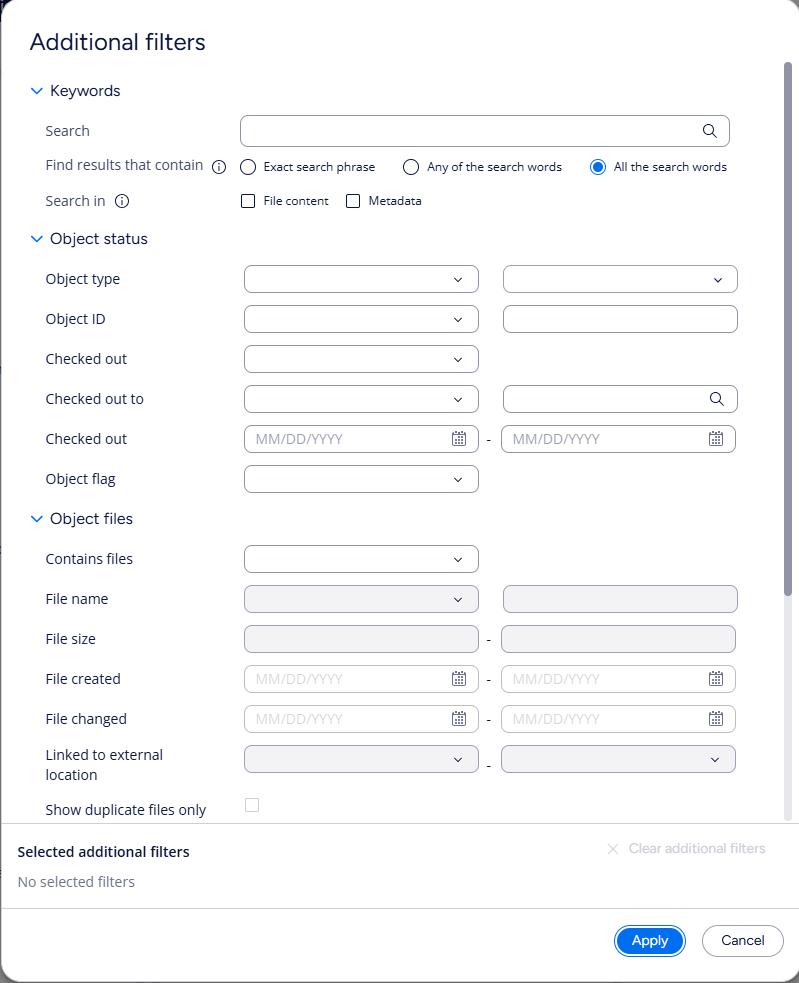
In the new Desktop, Advanced search for the most used Property Search has been made in a way that lets you add as many properties as you wish. The more rarely used advanced filters can also be accessed through the same screen.
Search facets
The availability and scheduling of the following Search facet functionalities is still being evaluated:
- Ordering of the search facets
- Setting default search facets
- Adding last modified as a search facet
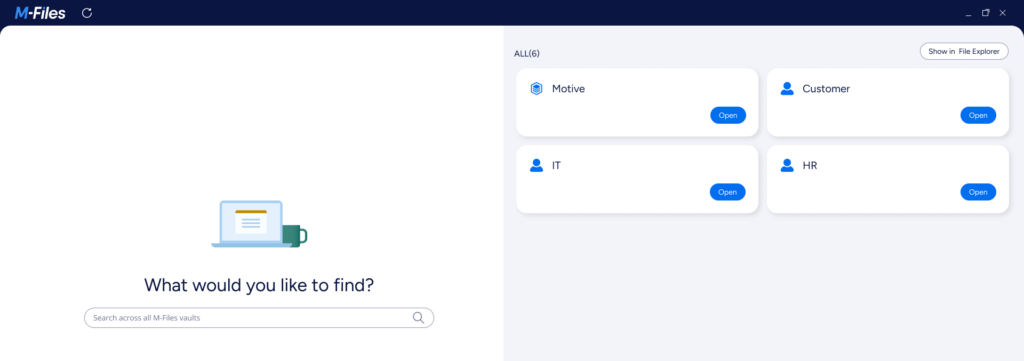
Search from multiple vaults
In the classic Desktop the search from multiple vaults was displayed at the bottom of the screen as the amount of search results in each vault

Withe the new Desktop a new home screen contains Global Search which lets users search for content across all vaults to which they are logged in.
Hit highlighting
Content highlighting currently requires a separate search in document preview. We are evaluating further
improvements to that feature.
Metadata Card
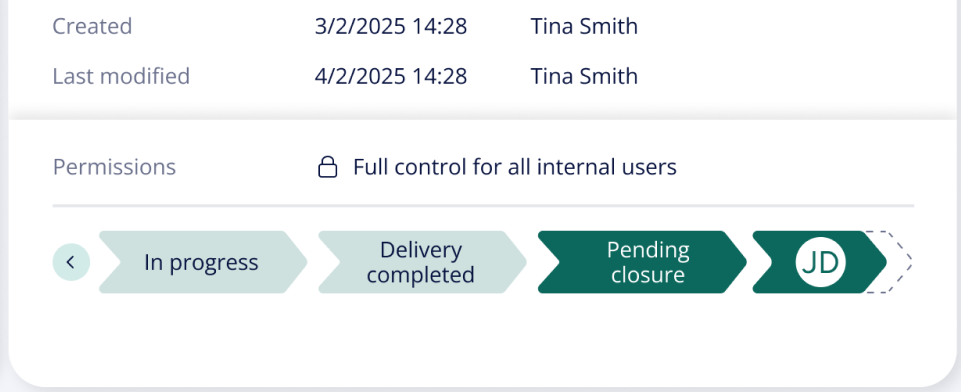
Visual Workflows
Visual Workflows is a refreshed, more visual workflow experience in the new Desktop. Built for driving processes directly in the Metadata Card, it’s designed to enhance situational awareness and support more informed decision-making.
Theming
Theming of the metadata card is planned to be partially supported in the new Desktop. For example, the text color of property group header can be modified, but theming for the metadata card description, ribbon, footer and metadata property suggestions will not be supported.
Sharing Content
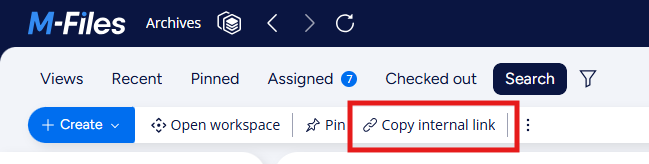
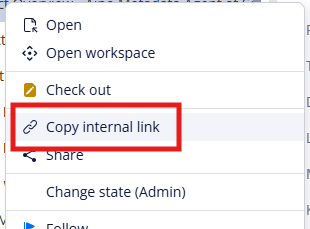
Share links to M-Files users
In classic Desktop, sharing links to other M-Files users was done through the context menu.
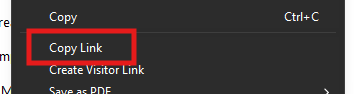
In the new Desktop, sharing links can be done either via the Task bar, or the context menu,
Create a visitor link
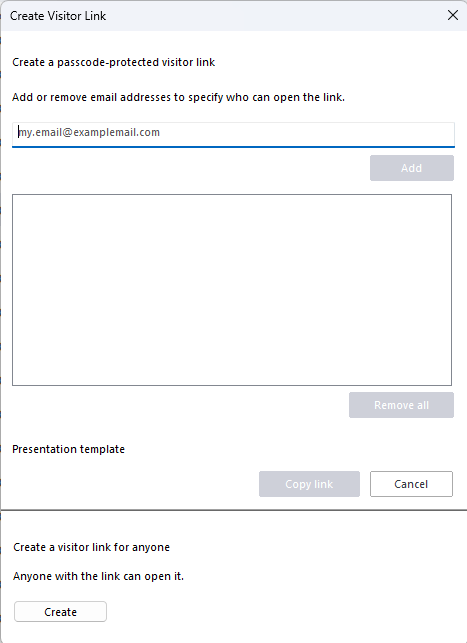
In the classic Desktop, visitor links were generated through the “Create Visitor Link” button on the context menu of an object.
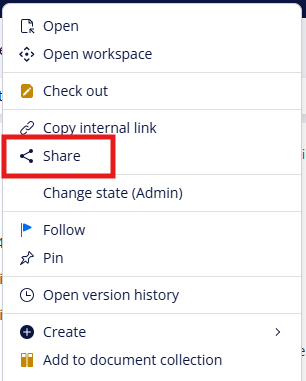
In the new Desktop, external sharing has been moved into the M-Files Sharing Center. This feature offers comprehensive capabilities for controlling sharing for any external parties. Open the context menu of an object to access Sharing Center.
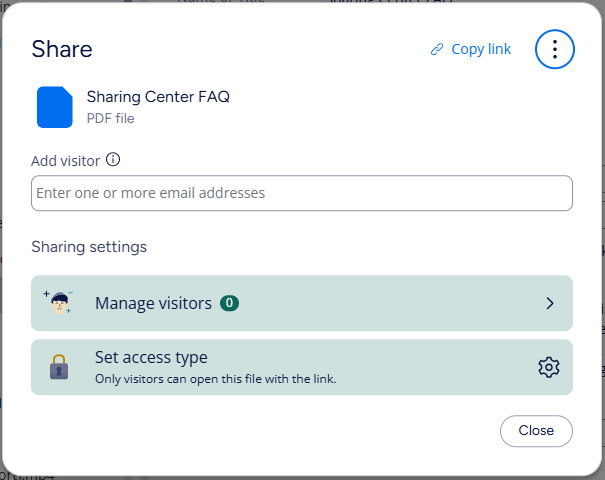
To read more on the M-Files sharing center, please visit the M-Files Community.
Management
Alt-menus
In M-Files classic Desktop, pressing the Alt key would open up a top menu through which it was possible to get to M-Files Settings, the context menu of an object, create objects, and change many Windows Explorer-related view settings.
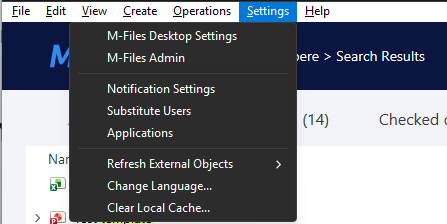
Since the new Desktop is not Explorer related, this Alt-menu is no longer available. However, many of the commands from the Alt menu are still available.
File:
- New Window – Not available in the new Desktop
- Create – Create new objects from the Task bar
- Add File – Add files to multi-file documents through the context menu of an object
- New View – View creation available through the Task bar
- Export – Exporting object information to CSVs is done through the context menu of selected objects, views, or virtual folders
- Copy Link – Available through the context menu of an object
- Create Visitor Link – Available through the Sharing Center found in the context menu
- Delete – Available through the context menu of an object
- Rename – Available through the context menu of an object
- Properties – Available through the metadata panel. Pop-up metadata card currently not supported.
Edit:
All available commands can be found through the Context menu. Select All can be done through keyboard shortcut Ctrl+A.
View:
- Toggling panels is no longer supported in the new Desktop.
- Show Annotations is available through Preview
- Share View by Email – Internal link to a view can be copied and share that in an email
- Other view commands – Not available
- Grouping options – Not available
- Choose Columns – Insertion and removal of columns available through context menu of column
- Display Mode – Explorer-based display modes are currently not supported. Future improvements evaluated.
- View related column settings controlled through context menu of column
- History – Available through context menu of an object
- Relationships – Support to be added later
- Go To – Navigating backwards and forwards available through Top bar, and keyboard shortcuts Alt+Left and Alt+Right work. Breadcrumb can be used for navigating to up levels of a view
- Refresh – Available through top bar and a keyboard shortcut F5

Create:
- All object types that have been marked as “Show creation command in the Task area” can be created through the Task bar
- Add Document from Scanner – Not available
- Import Files and Folders – Not available
Operations:
- All available object operations available through context menu of an object
- Offline synchronization – Not available
- Log Out – Available through a menu on the Top bar marked with the user’s initials
Settings:
- M-Files Desktop Settings – Available through Windows System Tray’s M-Files context menu
- M-Files Admin – Available through Windows System Tray’s M-Files context menu
- Notification Settings – Support will be added soon
- Substitute Users – Support will added later
- Applications – Not available
- Refresh External Objects – Not available
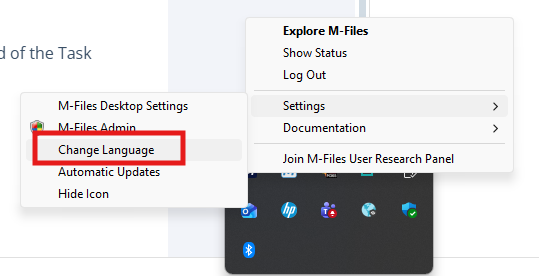
- Change Language – Available through a menu on the Top bar marked with the user’s initials
- Clear Local Cache – Not available
Help:
- M-Files User Guide – Available through a menu on the Top bar marked with the user’s initials
- Getting Started – M-Files Getting Started Guides available through M-Files Help Center. Help Center can be accessed through the question mark button on the Top bar in the client.
- M-Files Help Center – Help Center can be accessed through the question mark button on the Top bar in the client.
- About M-Files – Available through a menu on the Top bar marked with the user’s initials
Client language setting
Language can be changed by clicking the M-Files icon in the system tray and selecting Settings > Change Language.
Date format setting
Date format uses the same format as Windows.
Add-ons
DocuSign Integration
DocuSign Integration in the new Desktop also now supports Quick Sign and Send.
Compliance Kit
Compliance Kit is supported within the new Desktop. The actions can be done through the context menu of objects. Support for utilizing the Task bar instead of the Task Area is also coming soon.
PDF Processor
While the PDF Processor is supported with the new Desktop, the barcode editor is not supported.
UI Extensibility Framework
The classic Desktop and the new Desktop support different versions of the UI Extensibility Framework. The versions are not compatible, and vault applications built for the classic Desktop will not work Additional functionality will be added to the framework to improve the developer experience. See FAQ – New User Experience for M-Files Desktop and Developer Portal for more information about updating your UI extensibility apps to support the new clients.
View Extensions
View extensions vault application is replaced by Workspaces functionality. Further enhancements to Workspaces are
developed iteratively.